No currency exchange needed
No need to spend time looking for cash or exchanging currency




No need to spend time looking for cash or exchanging currency

No need to carry rubles with you — pay directly from your phone

Use m10 and scan the QR code at checkout to pay


1
Open the m10 app and go to the QR section at the bottom of the screen

2
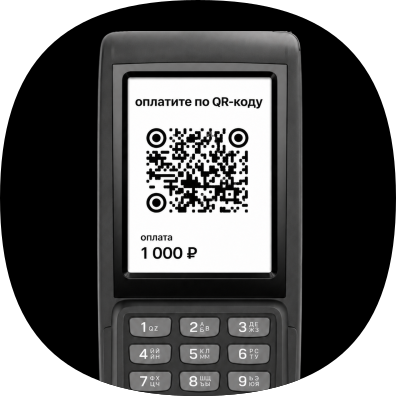
Scan the QR code at checkout. &The QR code will be shown by the cashier or payment terminal
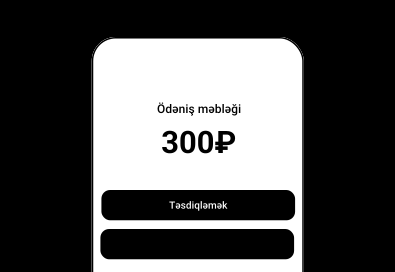
3
Check the amount and confirm the payment. You’ll see the payment details before confirming
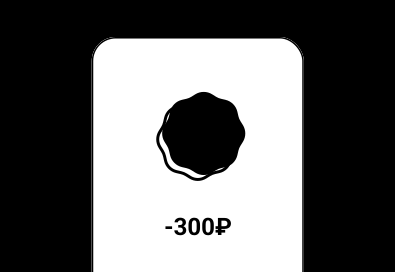
4
Wait for the payment to be completed. This may take 20–30 seconds


When you are in Russia, you can pay for purchases through the m10 app using a QR code. To do this, ask the seller to show an SBP or Green Bank QR code. Then scan it in the m10 app and confirm the payment. The funds will be debited from your m10 wallet.
To pay by QR code:
1. Open the m10 app.
2. Tap the QR icon at the bottom of the screen.
3. Scan the QR code provided by the seller.
4. Check the payment amount and confirm the payment.
After a successful payment, you will receive a notification in the m10 app.
The QR code may not scan for several reasons:
- poor lighting;
- the device camera is dirty;
- the QR code is damaged or unclear;
- the QR code is in an unsupported format.
What you can do:
- move the camera closer to or farther from the QR code;
- improve the lighting;
- clean your phone camera;
- ask the seller to display the QR code again.
The payment may fail for the following reasons:
- there are insufficient funds in your m10 wallet;
- temporary restrictions have been applied by the bank or payment system;
- a technical issue has occurred on the payment provider's side;
- the QR code has expired, if a dynamic QR code is being used.
We recommend that you:
- check your m10 wallet balance;
- try again in 1–2 minutes;
- contact support if the issue persists and provide the payment amount and transaction time.
The payment may be declined in the following cases:
- the security system identified the transaction as suspicious;
- the merchant does not support this payment method;
- bank or regulatory restrictions are in place.
If you believe the payment was declined by mistake, contact support and provide:
- the transaction ID;
- the payment amount;
- the transaction time.
In some cases, payment processing may take additional time.
We recommend that you:
- wait a few minutes;
- check the transaction status in the m10 app;
- contact support if the issue persists.
For verification, you may be asked to provide:
- a receipt or screenshot of the transaction;
- the transaction ID;
- the payment amount;
- the transaction time.
You can check the payment status in the transaction history section of the m10 app.
Possible statuses:
- Pending — the payment is still being processed;
- Success — the payment has been completed;
- Failed — the payment was not completed successfully.
Yes. All transactions are processed through secure payment channels and confirmed in the m10 app.
We recommend using only QR codes provided by the seller and carefully checking the payment amount before confirming the transaction.


Scan this QR code with your phone to download
bakikartbakıkartbakikart onlinebakıkart balansbakikart azbakikart online odemebakıkart appbakikart odenisbakikart nfcbakikart qr kodbakikart machine near mebakikart top upbakikart balansi artirmaqbakikart nomresibakikart balansbakikart online yuklemebakı kartın balansını yoxlamaqbaki kart balansinin artirilmasibaki kart qeydiyyatbakikart balansini artirmaqbakikart balansi yoxlamaqbaki kart online balans artırmaqbaki kart balans artirbakikart online balans yuklemekbakikart balansbakikart online balans artirmabaki kart nece alinirbakikart online balans yoxlamaq


